Showing posts with label QuickBooks Enterprise. Show all posts

Sunday, August 9, 2015

QuickBooks Premier Accountant

QuickBooks Premier Accountant includes all the features of QuickBooks Pro and Premier plus the following functionalities:
  • Maximum of 5 users
  • Audit a company file while client is also working on their file
  • Clear up undeposited funds account
  • Ability to open two company files at the same time
  • Intuit Statement Writer
  • Batch Enter Transactions
  • Client Data review
 

  •  Fixed Asset Manager


  • Fix incorrectly recorded taxes
 

  • Fix unapplied customer payments and credits


  • Reclassify transactions 


  • Working Trial Balance 


  • Write off invoice


For any questions, email us at albqbsolutions@gmail.com


Thursday, August 6, 2015

QuickBooks Premier

QuickBooks Premier includes all the features of QuickBooks Pro plus the following functionalities:

  • Maximum of 5 users
  • 150+ Industry Specific Reports
  • Track your balance sheet by class such as a location, department, or profit center
  • Budgets, Forecasts and Cash Flow Projector


  • Create Sales Orders and Estimates, track back orders and generate Purchase Orders from Sales Orders and Estimates

  • Build Inventory Assembly and Bills of Materials

  • Reversing Journal Entries


  • Track time and expenses by employee, project, client, or service


  • View customized sales and profitability reports


For any questions, email us at albqbsolutions@gmail.com


QuickBooks Enterprise 2015 System Requirements

Sunday, September 7, 2014

Job Costing in QuickBooks

A job is a project of a customer.  Job costing is the tracking of expenses for a particular job.  This is very important because it will give the owners an idea on which job is profitable or not and of course it will also measure the overall health of the business.  Construction companies, architects, wedding planners and lawyers are just some examples of businesses that needs job costing.

In QuickBooks, job costing allows business owners to see how much they spent and made for each of the jobs of his customers.  So  how can we get a Profit and Loss per Job in QuickBooks? It's very simple.

Steps:

1. In purchasing inventory or paying for services, we use the icon for the Purchase orders, Enter Bills or Write Checks.


2. The most important step in tracking job costs for a certain project is to put the customer name or job in the column designated once we purchase then uncheck the billable column.


3. Invoice the customer the usual way.


4. Now your reports are ready! Go to Reports > Jobs, Time & Mileage then choose from the available reports. You may try the Profit and Loss by Job or the Job Profitability Summary.  If you used estimates before creating the invoices, you may also check the Job Estimates vs Actual Reports.


For any questions, email us at albqbsolutions@gmail.com

Entering Batch Transactions in QuickBooks

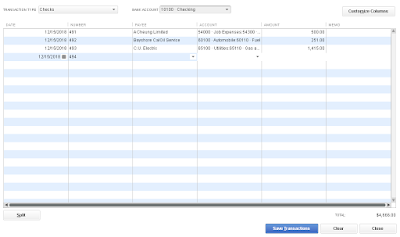
Entering batch transactions in QuickBooks is every bookkeeper's solution to their dilemma of entering backlog transactions especially if it involves a number of months.  It's a good thing if you already have an excel file of the transactions because it can easily be exported to QuickBooks by just copy and paste after doing some modifications in the columns.  If there is no excel file yet and all you have are just raw data like the hard copy of receipts or invoices then at least you don't have to click Save for every transaction and it will at least save some time and effort.  This feature started in QuickBooks Accountant 2013 and QuickBooks Enterprise Accountant 2013.  In these editions, we can do batch entry for checks, deposits and credit card charges.  But in the 2014 editions of QuickBooks Accountant and QuickBooks Enterprise Accountant, we can also batch entry the invoices, credit memos, bills and bill credits in addition to checks, deposits and credit card charges.

Steps:

1. Click the Accountant menu then choose Batch Enter Transactions from the drop down.


2. In the Batch Enter Transactions window, choose what type of transaction you would like to export. In this example, we use checks so you need to choose from which bank account you take the money from.


3. Make sure that the columns in your excel file are the same as the columns in QuickBooks. You may click the Customize button to do this.


4. Once QuickBooks has the same columns as the excel file or vice versa, you may now copy from excel then position your cursor in the first field in QuickBooks then click Paste.


5. Review the entries. If there are red entries, it means that there is an error. You may hover your mouse on the red entries and you can see an error message at the bottom of the page.


6. After being fixed, click Save Transactions at the bottom then you're done.


Tips:
1. Create a backup first before copying from excel.
2. Make sure that the vendor names in excel are the same spelling as what you have in QuickBooks because it will prompt you to add the vendor. Do the same thing with customers if you enter deposits and invoices.
3. Make sure that the accounts are the same spelling as what you have in QuickBooks because it will also prompt you to add a new account.
4. Make sure that the amounts doesn't have a currency. You may format the excel file first as plain numbers.
5. If the account is a sub account, the format should be like this - Automobile Expense:Gasoline Expense. Please refer to Step 5 and 6.

Monday, September 16, 2013

Entering Beginning Balances of Inventory in QuickBooks thru Add/Edit Multiple Feature

1. Click the Items and Services icon from the Home Page > Right click anywhere in the items table > choose Add / Edit multiple list from the dropdown.

2. Select a list > Make sure that you choose Inventory Parts in the dropdown list.
3. Fill out the item name > then put in sales and purchase description (if any)
4. Enter quantity on hand, as of date (your own cut off date) then enter the total value of the inventory (or you may right click > Customize to just enter the cost per inventory to automatically get the total value.
5. Enter COGS account which is usually Cost of Goods Sold.
6. Enter the Income Account which is usually Sales, Revenue, Service Income.
7. Asset Account should be Inventory Asset or you can point this to a specified asset account.
8. Enter the Sales Tax code.
9. Once complete, click Save Changes in the lower right.

Important : If you have many inventory to input, you may also use this Add / Edit multiple window to copy / paste from excel. Just make sure that the columns in your excel file are the same with the columns in this window. Just right click then click Customize your columns.


Friday, September 13, 2013

Factoring in QuickBooks (Selling your Receivables)

Accounts Receivable is a Current Asset. One definition of an asset is something that has value and can be sold. So some companies, to be paid faster, sell their receivables. Sometimes this is referred to as “factoring.” Why? I don’t know. Be aware that “factoring” has another meaning that has nothing to do with Accounts Receivables.
Selling your receivables is a form of financing: we receive a percentage of our accounts receivable from the factoring company and we pay interest in the form of “factoring service fees.” We benefit by receiving cash sooner than we would otherwise. The factoring company benefits by investing in our receivables and receiving a return on that investment.
Be aware that this is just one way to set up your vendors and accounts for factoring. There are other ways to do it.

Set Up

Set up the buyer of your receivables (your bank, a factoring company, an investor) as a Vendor in the Vendor Center. You will need this vendor to record interest paid and additional expenses.
Set up an account of type Bank, as a contra account to A/R. You will use this account to receive payments from the Factoring Company. (See example below)
Set up an account, either Expense or Other Expense called “Factoring Service Fees.”

Example:

1.     You are the bookkeeper for Larry’s Landscaping. Your company did $1,000 of landscaping services for John Smith. Because Larry’s Landscaping needs cash immediately, you will invoice John Smith for $1,000 and then sell the receivable to the ABC Finance Company for $950. John Smith will write his check to the ABC Finance Company for $1,000.
2.     Enter an invoice to John Smith for $1,000.00 in landscaping services. In the memo, include instructions that the check is to be written to the ABC Finance Company.
3. Larry’s Landscaping receives a check for $950 from ABC Finance. Enter a Journal Entry:
    1. a. Debit Cash for $950.00
    2. b. Debit Factoring Service Fees for $50.00
    3. c. Credit the A/R Contra Account for $1,000:
  1. 4.  Enter a Receive Payment:
    1. a. Bank account is the A/R Contra Account.
    2. b. Customer Name is John Smith.
    3. c. Payment amount is $1,000
    4. d. Apply the $1,000 payment to the $1,000 Invoice.
    5. e. In the memo, include that the check is from ABC Finance Company.
    6. f. Click Save & Close.
  2. Notes

    1.   In some cases, your customer will send the payment to your company, in which case, you must send the payment to the factoring company immediately.
    2.   You may be able to direct your customer to create a two payee check, i.e., both your company name and the factoring company name are included in “Pay to the order of” and either company may cash the check.
    3.   Use a Bill/Bill Payment to record any additional expenses from the factoring company.

Wednesday, September 11, 2013

Setting Up a Closing Password in QuickBooks

A closing password in QuickBooks is important to control any changes or modifications to the file after the books have been closed or if the bank accounts have already been reconciled. Only the Admin can do this function. Once there is a closing password, the other users can’t make any modification to the file without informing the Admin. To do this, click the Edit Menu > Choose Preferences > Go to Accounting then Company Preferences > Click Set Date / Password at the bottom of the window > Enter the closing date and your preferred password.


Tuesday, September 10, 2013

Write a refund check for a cancelled order

Use this procedure when a customer makes a down payment on goods or services and then cancels the order.
Note: This procedure assumes that you recorded the down payment in the Receive Payments window. To ensure proper accounting, you must record down payments in the Receive Payments window instead of the Make Deposits window.
To do this task
1.      Go to the Banking menu and click Write Checks
2.      Fill in the customer's name and the check amount.
3.      (Optional) Enter a memo to remind yourself what the check was for.

4.      In the Account field of the detail area, assign the check to Accounts Receivable.


5.      Save the check.
Loading, please wait . . .
After you record the check, you must apply the check as a "credit" against the customer's down payment in the Receive Payments window. This ensures correct accounting for the check.
6.      Go to the Customers menu and click Receive Payments.
7.      Enter the customer's name in the Received From field, but leave the amount at $0.00.
8.      Click Discount & Credits.
Make sure that the check you wrote is selected in the detail area of the payment. If any invoices are selected, clear the checkmarks by the invoices.


9.      Save the transaction.


Write a refund check for an overpayment

Use this procedure when a customer overpays an invoice or statement charge.
To do this task
1.      Go to the Customers menu and click Receive Payments.
a.Click the Received From drop-down list and choose the Customer name.
b.Enter the amount of the payment.
c.Click the Pmt. Method drop-down arrow and choose a payment method.

The overpayment box appears where you can choose whether to leave the overpayment as a credit or issue a refund for this amount.


3.      Click Refund the amount to the customer.
4.      Save the transaction.
Loading, please wait . . .
5.      Fill in the customer's name and the check amount in the Issue a Refund window.


6.      (Optional) Enter a memo to remind yourself what the check is for.
7.      Click OK.


Sunday, September 8, 2013

How to do Bank Reconciliation in QuickBooks

  1.  Click Reconcile from the Home Page
  2. Choose the bank account you want to reconcile, enter the bank statement date and the ending balance. The opening balance will automatically populate since it is the ending balance last month.
  3.  Enter any bank charges or interest earned that are not yet recorded in QB.
  4. Click Continue.

1)      Place a tick mark for the transactions that you can see from your bank statement. If you can’t find a withdrawal transaction in the bank statement but recorded in QB, it is an outstanding check. Same thing with deposits, if it’s not in the bank statement, it’s a deposit in transit.

2)      Once the difference at the lower right is 0.00, it means that your reconciliation is correct and you may now click Reconcile now. If not, you can check the Deposits and Other Credits and Checks and Payments at the lower left of the screen and compare it with your bank statement so you can easily find the discrepancy.
3)      If you can’t find the difference, you can click Reconcile Now since QB will create a Reconciliation Discrepancy account.
4)      Print the Reconciliation Reports for your records. QB Pro will only let you access the last reconciliation report while QB Premier will store all your reconciliation reports.


Tuesday, January 22, 2013

QuickBooks Frequently Asked Questions


1. Can we setup Philippine VAT in QuickBooks US version?
   Definitely. We can even customize QB so that you can easily fill out BIR forms like 2550M, 2551M, 1601E, 1604E, 2307 or 1601C. But if you business is vatable, it's recommended that you use QB UK Version since it will automatically compute VAT Input and Output.

2. Can we use the Peso sign in our QB forms?
   Yes, any currency will do.

3. How do we know that the licenses you sell are not pirated?
  You may go to www.quickbooks.com/support then to their installation center. If we download QuickBooks using your license number, it will let you do so if it is genuine. If not, you can never download from their website.

4. Do you also sell QuickBooks with CD installer and manuals?
    No, we don't sell QuickBooks with CD installer anymore due to shipping and custom charges. We provide training manuals for FREE.

5. Do you have after sales technical support?
    We have 6 months FREE technical support through remote access, email or phone. Charges may apply for on site visit.

6. What if my computer crashes? Can I still reinstall QuickBooks?
    Yes you can. You may call us so we can reinstall it for you (FREE OF CHARGE) or you may go directly to the QuickBooks website so you can download the installer. As a rule of thumb, always backup your files to an external drive.

7. How often do I have to upgrade my QuickBooks?
   I have to provide a 3-part answer to this question.
   Part 1 - If you are involved with any of the QuickBooks connected services or online services (i.e. payroll, credit card processing, e-mailing invoices through QuickBooks servers, etc.), Intuit forces you to upgrade at least once every 3 years. If you do NOT upgrade during that time, access to any of the connected services you use will cease to function.
   Part 2 - If you are NOT involved with any of the QuickBooks connected services above; upgrading is completely at your discretion. As long as QuickBooks meets the new requirements of the future operating systems, then you can use it as long as you want.
   Part 3- A new version of QuickBooks is released every October. You can assess if the new features and benefits are worth the cost of an upgrade.

8. Will I lose my data if I upgrade from an older version of QuickBooks?
  No, you will not lose your data. The process of upgrading from an older version to a newer version is pretty easy. The upgrade process forces you to make a backup copy of your QuickBooks data before it begins, so you have that available "just in case" something goes wrong (i.e. power outage during the  upgrade, etc.

9. How does the licensing for QuickBooks work?
   Each license (or user) means that there is only one person who can work in the QB file in one time. For     example, if you are a big company and you have bookkeepers in charge of AP, AR and Inventory. Of course, these people needs to access QB simultaneously that's why you will need 3 licenses. 

10. How many people can use QuickBooks at the same time?
Answers:
· Pro and Premier versions: No more than 5 people can access QuickBooks at any time
· Enterprise version: No more than 30 people can access QuickBooks at any time
· Online version: No more than 3 people can access QuickBooks at any time. Your accountant can also access it and not count against the 3 person limit.
· Mac version: No more than 3 people can access QuickBooks at any time (beginning w/ 2011 version. Prior to that, only one person at a time).

11. Can Statements Be Formatted Into Columns For Departments?
  Yes. The ability of setting up "Classes" for income and expenses will allow you to see activity for different departments within your company. Classes are one of QuickBooks most powerful features and one that is often under-utilized. Classes offer a straight forward means of segregating your business activities by Profit Center or Department. Thus, operating statements can be generated for individual segments of your business.

12. What Methods Of Inventory Method Does QuickBooks® Support?
  QuickBooks uses the average cost system for inventory tracking. It doesn’t support LIFO or FIFO.

13. How do I move QuickBooks or my data to a new computer?
To move QuickBooks from one computer to another:
· Install and register QuickBooks on the new computer.
· Back up the company file on the old computer.
· Restore the backup on the new computer.
If you installed a newer version of QuickBooks on the new computer, the company file will be updated automatically the first time you open it.

14. Where is my company data is file?
The location where QuickBooks automatically stores your company data files depends on your operating system and QuickBooks version:

Windows 7, 8 or Vista - C:\Users\Public\Documents\Intuit\QuickBooks\Company Files
Windows XP - C:\Documents and Settings\All Users\Shared Documents\Intuit\QuickBooks\Company Files

Wednesday, March 16, 2011

QuickBooks Financial Software (Desktop Editions)


QuickBooks for MAC
Built for the Mac OS - Looks and works like you'd expect.

QuickBooks PRO 
Manage your business better on a PC. Best suited for up and running businesses.

QuickBooks Premier
For established and expanding businesses and tailored to your business needs since there are industry specific reports and tools that are tailored to your business type.

QuickBooks Enterprise
Intuit's top of the line! It has enhanced reporting customization, sophisticated inventory capabilities, expanded user controls, multi-location access, up to 30 users.